
Free for Windows 10 and 11
Your disk is full. Let's fix that safely.
See what fills your drives, clean the caches and leftovers you don't need, and keep an eye on your disks' health. Nothing is deleted until you confirm.
- Nothing is deleted without your OK
- Sends nothing about your PC
- 18 languages
- One small file, no ads
- Windows
- Apps and files
- Caches and leftovers
- Free
- 38 GB freed
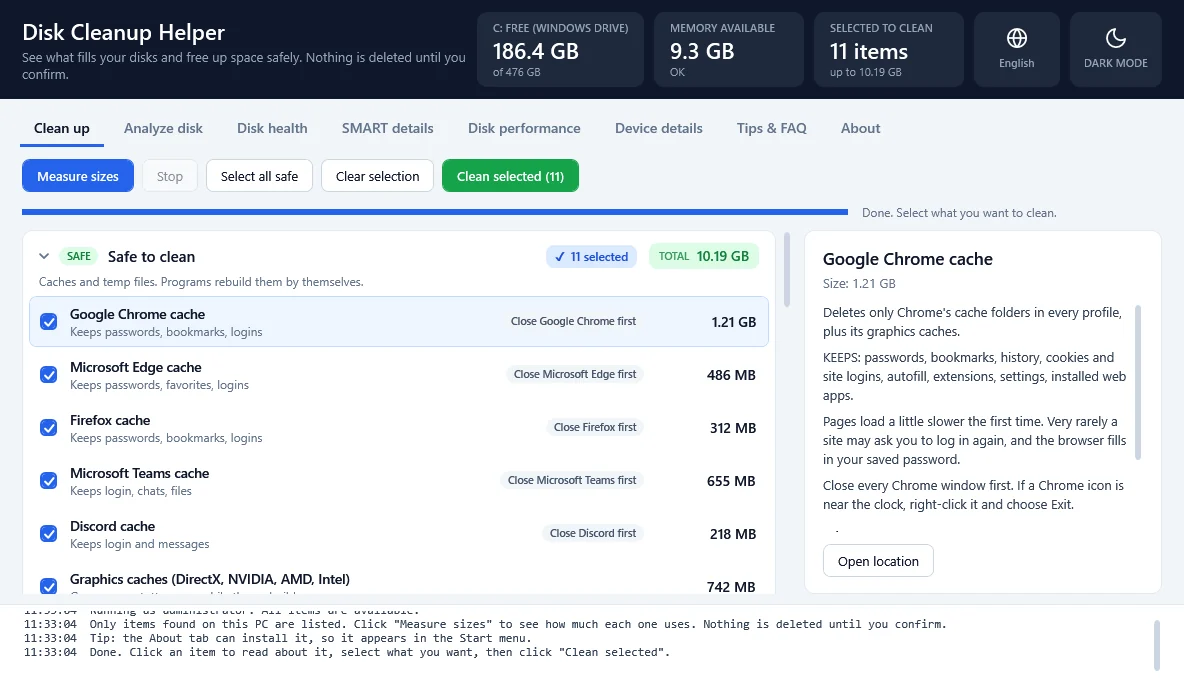
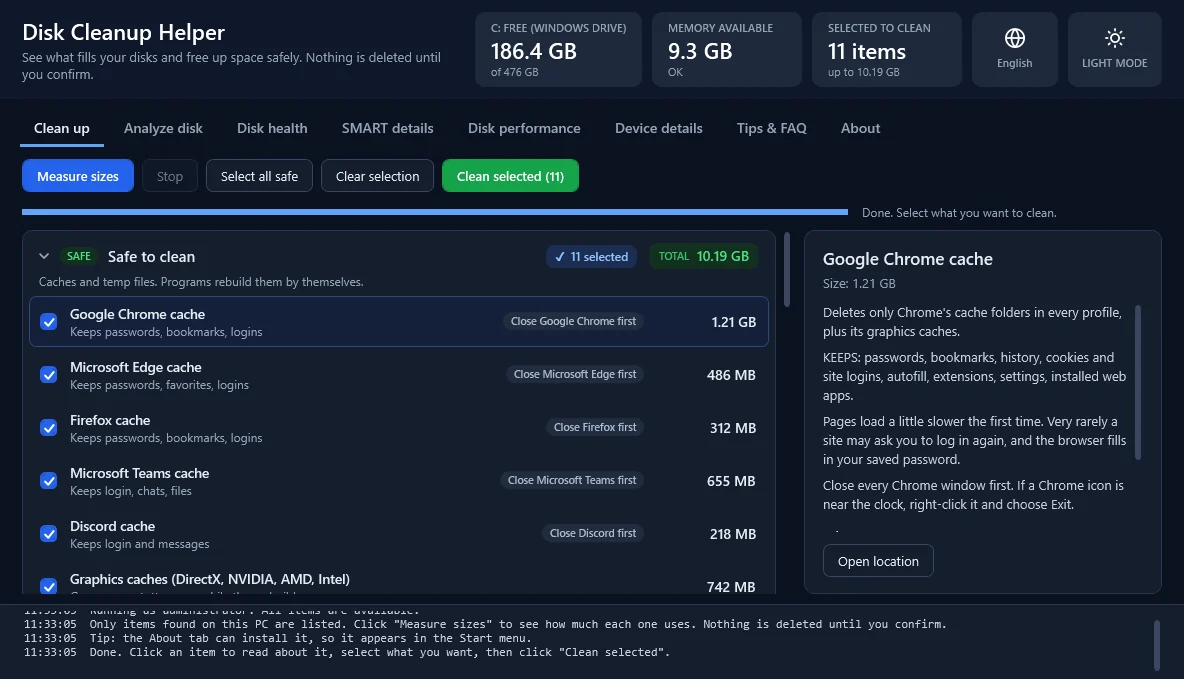
What it cleans, and what it never touches
Every item sits in a group that tells you how careful to be, and says what you keep and what you lose before you tick it.
- SAFE
Safe to clean
Caches and temp files. Programs rebuild them by themselves.
For example: Browser and app caches (your passwords, bookmarks, history and logins stay), temp files, error reports.
- ADMIN
Old installer files and Windows cleanup
Needs admin rights. Read each one before you select it.
For example: Old update files of installed programs (the newest 3 of each stay), Windows Update downloads, Microsoft's own Windows component cleanup.
- YOUR CALL
Your call
You lose something small. Read each one before you select it.
For example: Old project history, downloaded songs, video previews, crash dump files, what is in the Recycle Bin.
- SETTING
Windows settings
Switches that free space or keep it free.
For example: Hibernation, Reserved Storage, CompactOS and Storage Sense.
- INFO ONLY
Do it yourself
The tool only shows and opens these. It never deletes them.
For example: A previous Windows installation, the biggest programs, System Restore, Docker, WSL, your Downloads folder.
Never touched by the Clean up tab: your documents, photos, music, videos, desktop and downloads.
Everything about your disks
Seven tabs in one small program.
Clean up
Safe cleanup of browser and app caches, temp files, old update files, Windows leftovers and more.
Analyze disk
The biggest folders and files on any drive, so you can find what takes your space.
Disk health
Whether each disk is healthy and how full each drive is, with a live temperature and history charts.
SMART details
The full self-monitoring data of each disk.
Disk performance
Live disk activity, and a speed test you can compare later.
Device details
Windows, processor, memory, graphics, screens, storage, battery, network and sound.
Tips & FAQ
Simple habits that keep your disk from filling up, and answers to common questions.
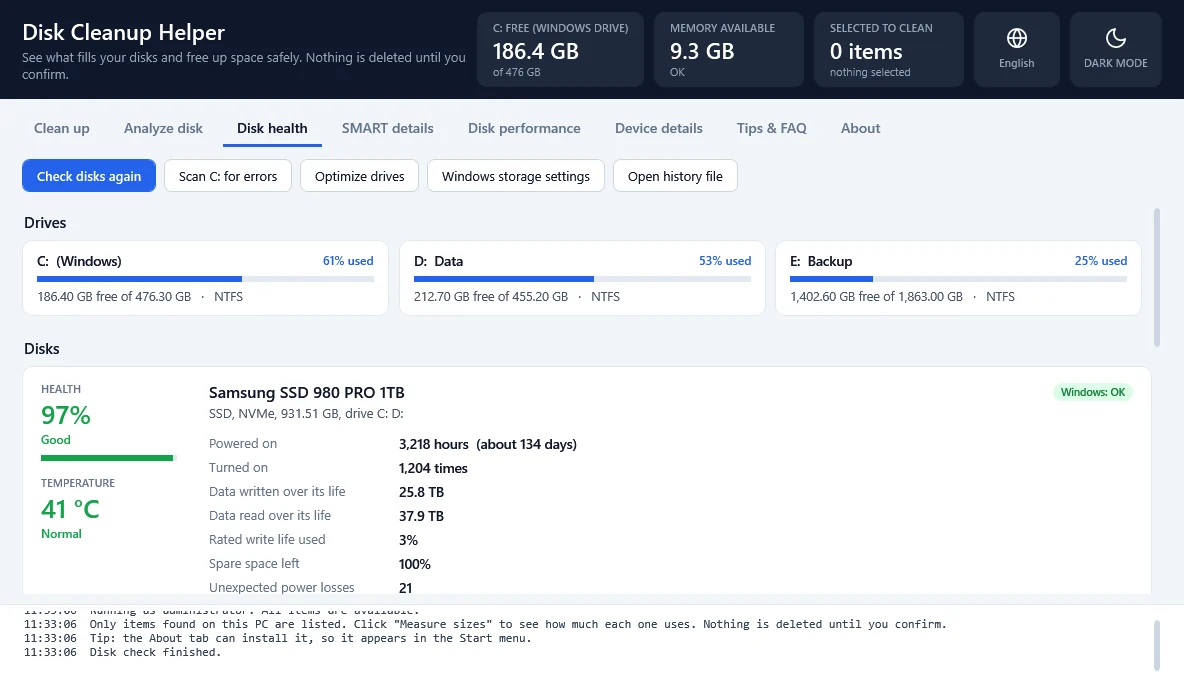
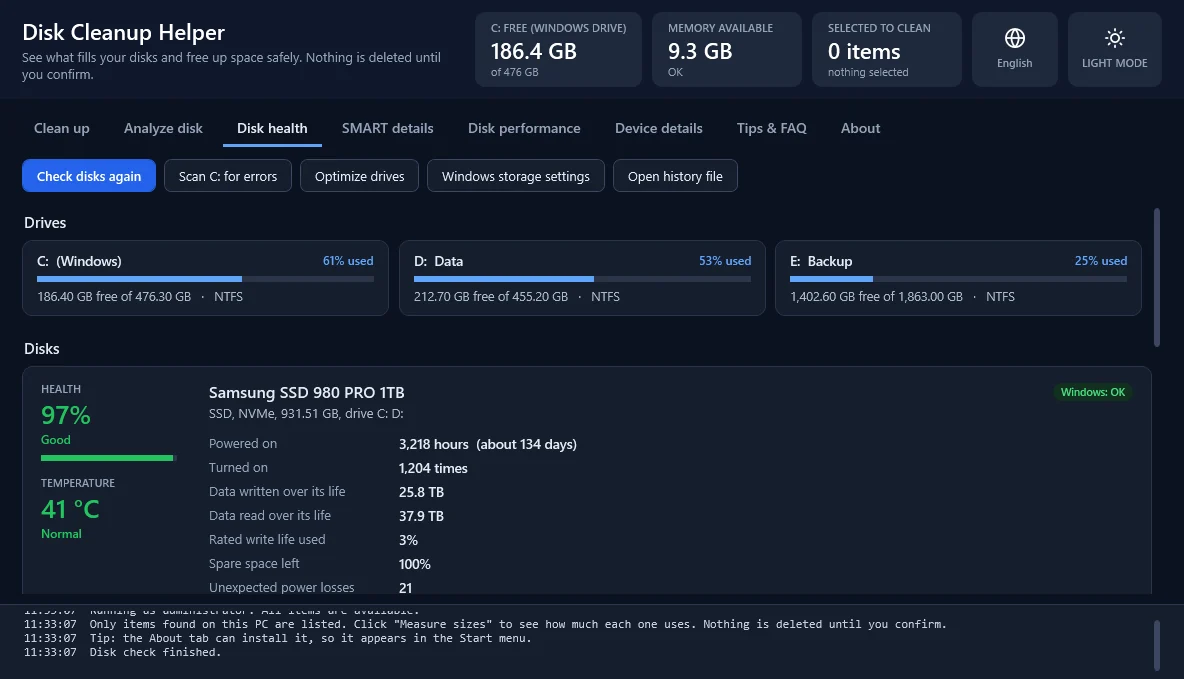
Safe by design, private by default
- Nothing is deleted until you select it and confirm.
- Cleanup items only touch caches, temp files and old update files. Your documents, photos, music, videos, desktop and downloads are never cleaned automatically.
- Browser and app caches keep your passwords, bookmarks, history and logins.
- It asks you to close a browser or app before cleaning its cache.
- It warns you if the PC is low on memory before measuring, scanning or cleaning.
- Windows and program files are protected in the Analyze disk tab.
- It never follows folder links into other folders.
Private
It sends nothing about your PC. It only asks GitHub whether a new version exists, and you can turn that off in the About tab. A history of what was cleaned is saved on this PC only.
Questions
Is it safe to clean what this app suggests?
Items in the "Safe to clean" group are caches and temporary files that programs rebuild by themselves. Items in "Your call" remove something small, so read them first. Items marked "Info only" are never deleted by the app; it only shows them and opens their location.
Will cleaning my browser cache log me out of websites?
No. The cache cleanup keeps cookies, saved passwords, bookmarks and history. Very rarely a site may ask you to log in again, and your browser fills in the saved password.
Does the app send any of my data anywhere?
No. It sends nothing about your PC. The only connection it makes is to ask GitHub whether a new version exists, at most once a day. You can turn that off in the About tab.
How do updates work?
When a new version is out, the app downloads it in the background and checks it: its SHA256 and version number must match the release. A bar then offers "Restart now". If you choose "Later", the update is installed when you close the app. You can turn off the automatic check in the About tab; the "Check for updates" button there still works.
Why does the app ask for admin rights?
Admin rights are needed to clean Windows' own temp and update files and to read the disks' health data. If you click No, the app still works, and the items that need admin rights are greyed out.
What does the health percentage mean?
It is an estimate from the disk's own self-monitoring data (SMART, or the health log on NVMe SSDs). 100% means no problems or wear were found. It is tuned to land close to tools like Hard Disk Sentinel, but every tool uses its own formula, so numbers can differ slightly.
How do I uninstall it?
Settings > Apps > Disk Cleanup Helper > Uninstall, or the Uninstall button in the About tab. If you never installed it, just delete the program file.
Download
One small file. No installer needed: unzip it and run it.
Download DiskCleanupHelper.zip- Version
- 1.1
- Released
- October 19, 2026
- Size
- 906 KB
A0A3DB7244E9EB1AA1D2AECAB8627662